TABLE OF CONTENTS
Introduction
You can cancel any invoice or credit note that has not been partly paid that appears in the Supplier Open Items screen.
Cancel a Purchase invoice
- Go to Purchases>View Supplier Ledger and select the relevant supplier.
- The Open Items screen opens displaying all unmatched transactions.
- Highlight the transaction to be cancelled and select the Reverse.
Select Yes to the following confirmation:
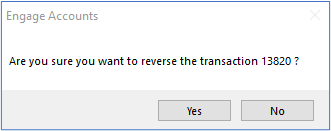
- A confirmation message appears to say the record is reversed.
- The transaction will be reversed at the original transaction date in the first available open period if the original period has been closed.
If the transaction does not appear in the Open Items screen:
- In the Open Item screen select the Statement Option.
- Highlight the transaction to be cancelled and select the Match Details.
- Select the Unmatch.
Select OK to the following prompt:
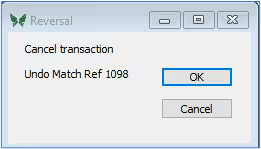
- A confirmation message appears to say the record is unmatched.
- Close all screens and return to the Open Items screen for the Supplier. The unmatched transactions will now appear in the screen and can be reversed.
Note: If the invoice has been partly paid the amount in the Outstanding and Original columns will be different. You cannot reverse this screen without unmatching the transactions. You must follow the process as if the transaction does not appear in the Open Items screen, above.
For more information on reversing and unmatching transactions, please refer to the Engage Accounts Purchases guide.
Was this article helpful?
That’s Great!
Thank you for your feedback
Sorry! We couldn't be helpful
Thank you for your feedback
Feedback sent
We appreciate your effort and will try to fix the article