TABLE OF CONTENTS
Introduction
Staff categories allow you to categorise staff and use filters on various screens in Engage and the Staff Portal.
Add a staff category
- Go to Staff > Staff Screen > Current Staff.
Select the Edit drop down list contents icon at the top left-hand side of the staff grid.

Select Staff Category from the list of options.
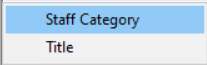
The Add/Edit Staff Category window opens.
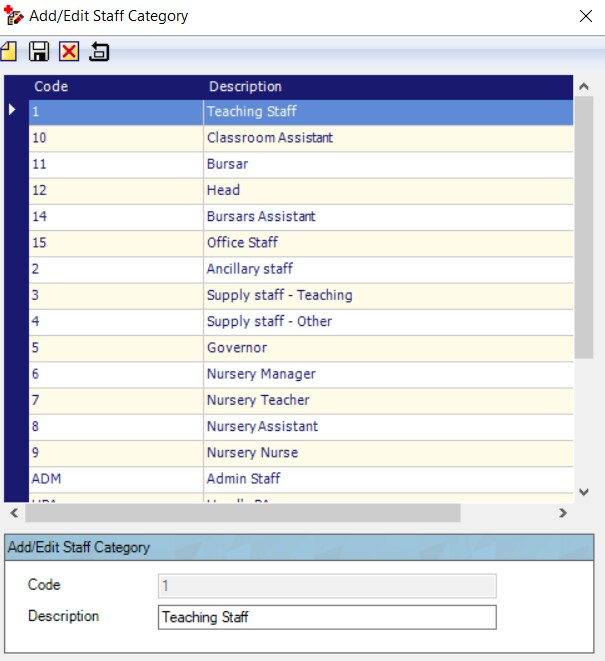
- Select Add New.
- Enter a Code and Description.
- Select Save. The new category is added to the list.
- To add to a staff member, find the relevant record in the grid.
Select the drop-down in the Staff Category field.
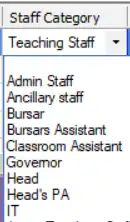
- Choose the Staff Category.
- Select Save.
Was this article helpful?
That’s Great!
Thank you for your feedback
Sorry! We couldn't be helpful
Thank you for your feedback
Feedback sent
We appreciate your effort and will try to fix the article