TABLE OF CONTENTS
Introduction
There are two stages in the staff screen, Current Staff and Former Staff. When a staff member leaves the school their record should be transferred to Former Staff. All of their information is kept intact and they can be reinstated back to Current Staff if they return to the school.
Transfer a staff member
- In Engage go to Staff > Staff Screen > Current Staff.
- Search for the staff member in the list.
Select Transfer Staff.

- The Transfer Current Staff to Former Staff window opens.
Complete the relevant fields.
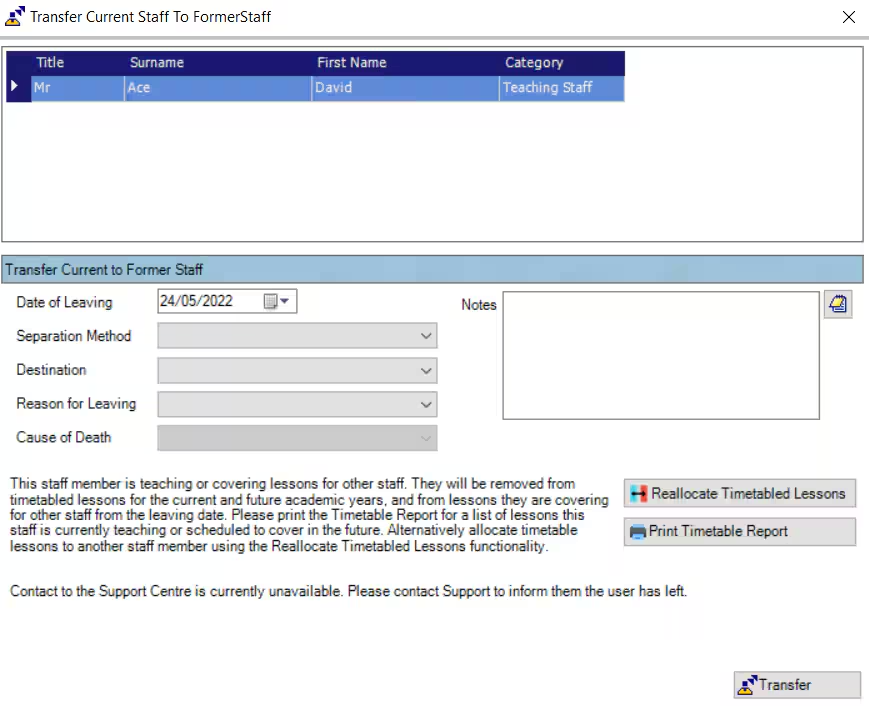
- If the member of staff is not timetabled select Transfer. The record will be transferred to the Former Staff screen.
- If the member of staff is timetabled, you have the option to Reallocate Timetabled Lessons (if this hasn't already been done), or to Print Timetable Report, to check that all their lessons have been reassigned.
- Once both are checked select Transfer.
Was this article helpful?
That’s Great!
Thank you for your feedback
Sorry! We couldn't be helpful
Thank you for your feedback
Feedback sent
We appreciate your effort and will try to fix the article