TABLE OF CONTENTS
Introduction
Staff Portal users need a username to log into the Portal but their account must be activated before they can do this. To find out how to create user accounts see Manage Users and to assign security roles see Assign a role.
Activate a Staff Portal account
- Once the user ID has been created and the relevant role assigned, in Engage go to Staff > Staff Screen > Current Staff.
- In the staff grid select the User ID field next to the required staff member.
- The drop-down list displays all unallocated User IDs.
- Select the staff members User ID from the list.
- Select Save.
- In the Staff Portal go to Admin > Users.
- Find the staff member in the list.
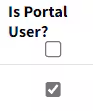
Tick the Is Portal User field on their row.
- Select Save All.
- A green message appears saying the record is updated and an email is sent to the staff member.
- The staff member can now log in. See Log in to the Staff Portal for more information.
Was this article helpful?
That’s Great!
Thank you for your feedback
Sorry! We couldn't be helpful
Thank you for your feedback
Feedback sent
We appreciate your effort and will try to fix the article