TABLE OF CONTENTS
Introduction
There are two ways to add a contact. They can be added via the Pupil record or the Manage Contacts screen.
Contacts can be added as joint contacts (Mr & Mrs, Dr & Mrs) or as separate contacts. For more information about adding contacts see the Adding Contact Data guide.
Add a contact
Add a contact via the Manage Contacts screen.
- Go to Contacts > Manage Contacts.
Select Add New.

- A blank Contact Details section appears at the bottom of the screen.
Complete the relevant details.
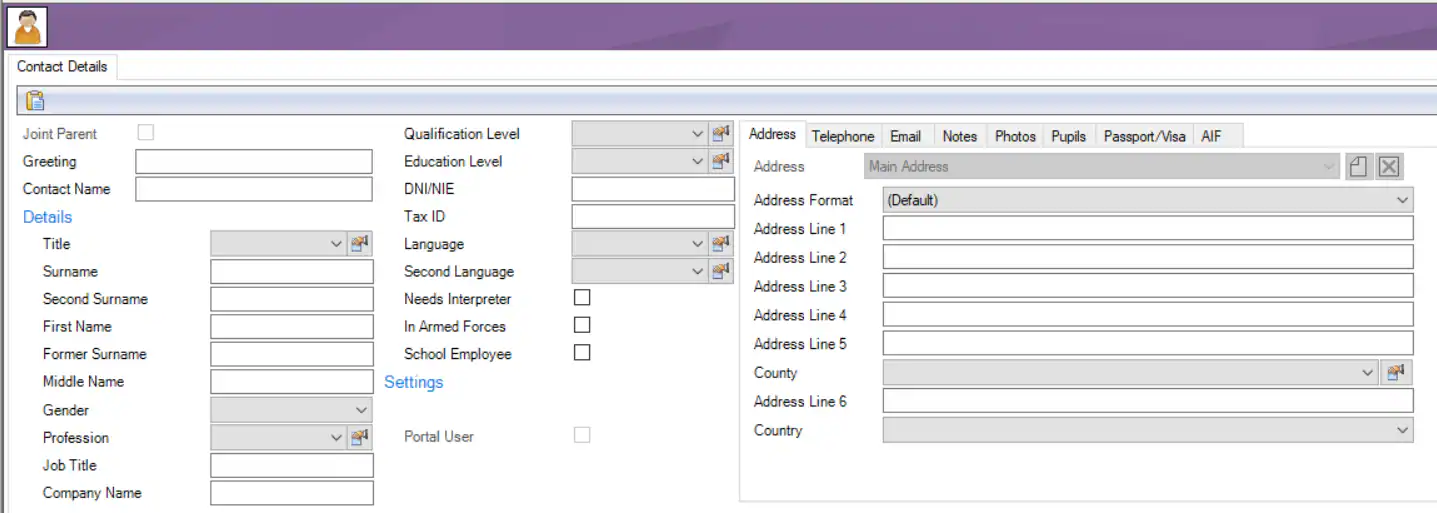
- Select Save.
- The contact record is added to the database.
Find out how to link the contact to a pupil here: Add a contact to a pupil or see the Adding Contacts to Pupils guide for more information.
Add a contact via the Pupil record
- Go to Pupils > [Relevant Pupil Stage].
- Find the required pupil.
- Go to the Contacts tab.
Select Add Contact to Pupil.

- The Contact Information window opens.
Select Add New.

Complete the Contact Details section at the bottom of the screen.
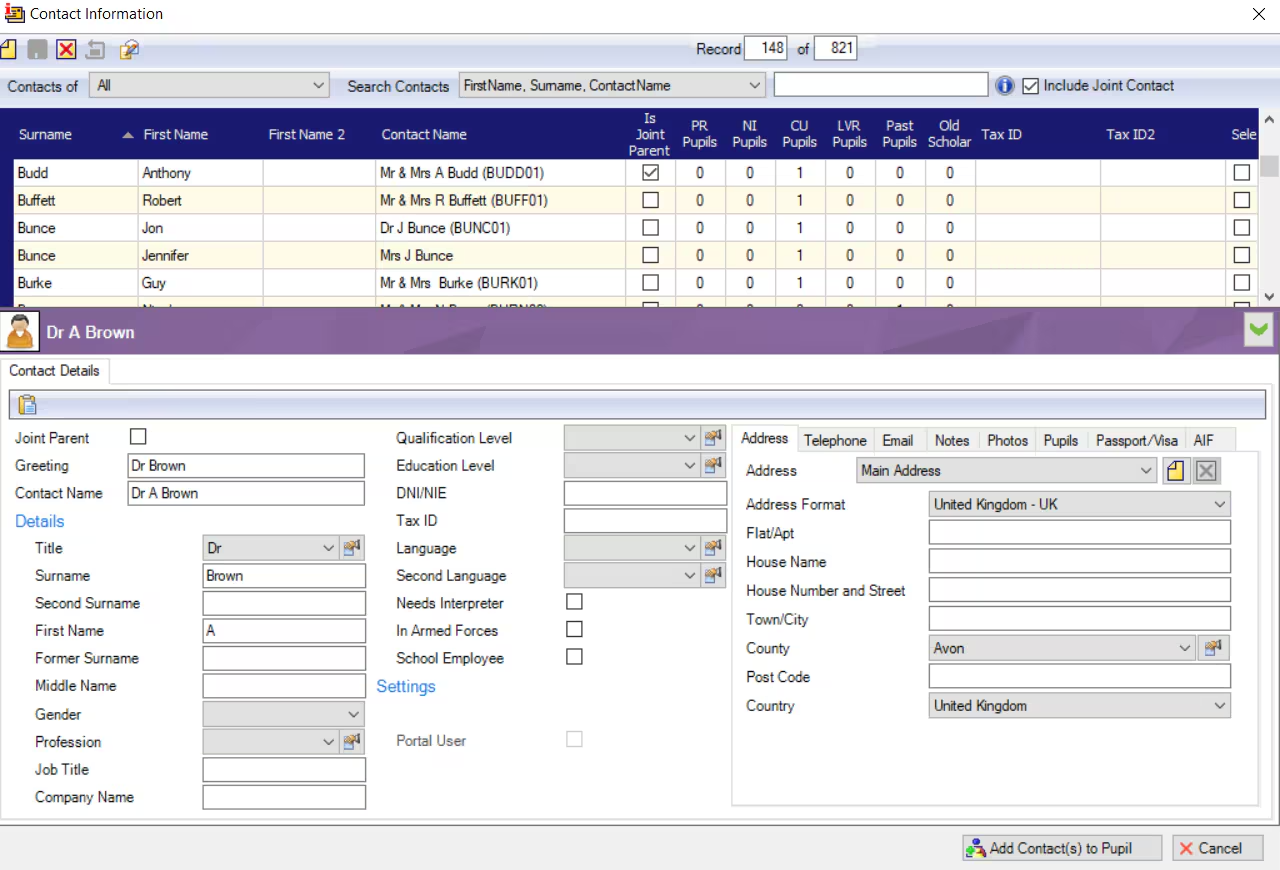
- Once complete select Save.
- Tick the Select field for the contact and select Add Contact(s) to Pupil.
- The contact is added to the pupil record.
On the Contacts tab select the Relationship of the contact to the pupil.

- Select Save.
Was this article helpful?
That’s Great!
Thank you for your feedback
Sorry! We couldn't be helpful
Thank you for your feedback
Feedback sent
We appreciate your effort and will try to fix the article