TABLE OF CONTENTS
Introduction
Sometimes you may find that pupils are linked to the same contact but they aren’t appearing on each other’s Siblings tab. This usually means that the contact has been added to the system more than once and each pupil is linked to a different contact record.
Remove a duplicate contact in order to link siblings
- Go to Contacts > Manage Contacts and search for the contacts surname. All contacts with that surname will be listed so you can spot any duplications.
- There should only be one of each contact in the system so you need to decide which one to delete. Note: make sure there will be no impact on the Fees module before you delete the record.
- Go to the Pupils section on the Contact Information record.
Press Remove to delete each pupil from the contact.
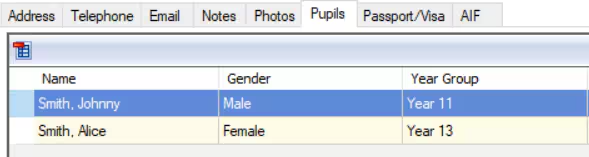
Once all pupils are removed, select Delete.

- The Bulk Delete Contacts screen opens. All contacts linked to None pupils will be listed.
Select the contact to delete.
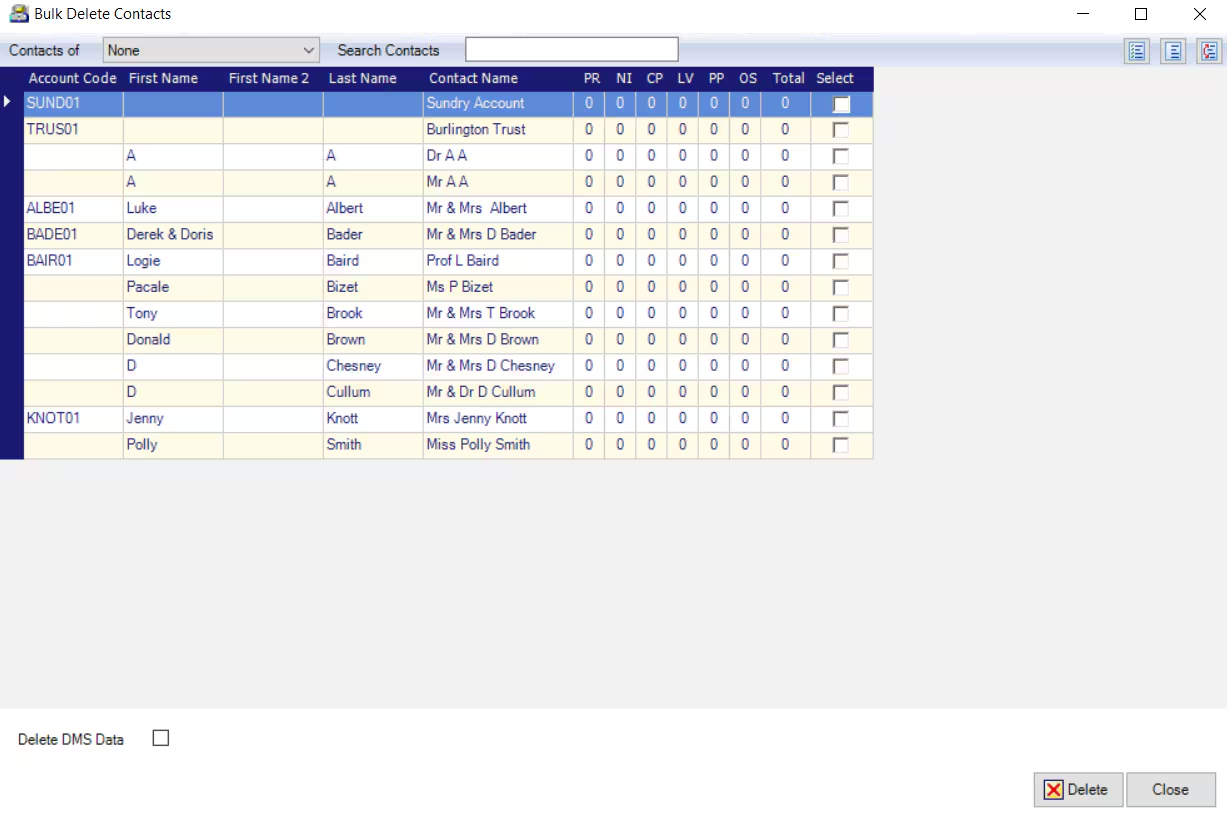
- Tick Delete DMS Data if required.
- Select Delete.
- The contact will be deleted.
Note: there may be reasons that a contact can't be deleted. For more information see Delete a contact and the Deleting Contacts from Engage guide.
Was this article helpful?
That’s Great!
Thank you for your feedback
Sorry! We couldn't be helpful
Thank you for your feedback
Feedback sent
We appreciate your effort and will try to fix the article