TABLE OF CONTENTS
Introduction
Contacts can be deleted from the Manage Contacts screen or via the Contact Information window which is accessed via the Add Contact to Pupil button in the Contacts tab on the pupil record. Contacts can only be deleted if they meet the following criteria:
- They are not linked to a pupil
- They have an Account Balance of £0
- They have no fee's data
Delete a contact
- Go to Contacts > Manage Contacts.
Select Delete.

The Bulk Delete Contacts window opens.
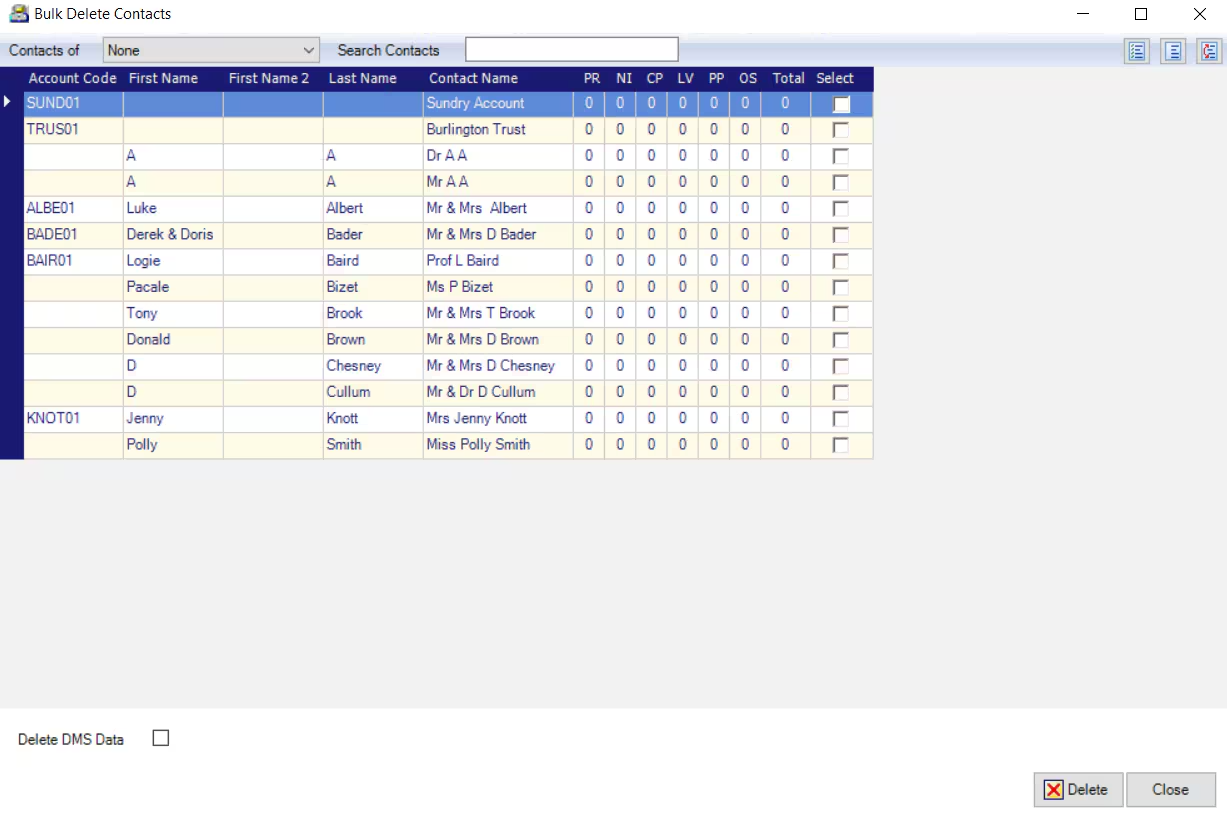
- Use the Contacts of filter to find the contacts of None. This means the contact is not linked to any pupil.
- Select the contact/s.
- Select Delete DMS Data if required.
- Select Delete.
If the contact can be deleted the record will disappear. If they can't the following window will open detailing the reason the contact can't be deleted.

At the bottom of the window you can choose to Delete Non-Fees Data Only and Anonymise Name. You can also Delete DMS Data and Include Fees DMS Data.
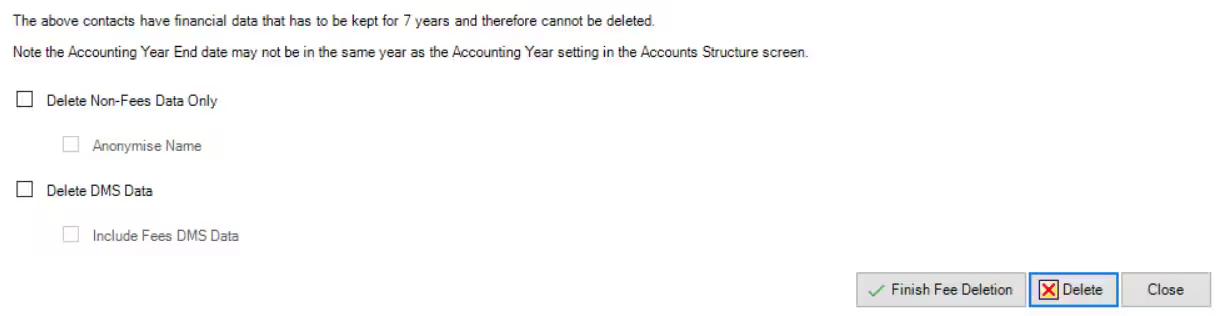
- Once completed select Finish Fees Deletion or Delete.
Was this article helpful?
That’s Great!
Thank you for your feedback
Sorry! We couldn't be helpful
Thank you for your feedback
Feedback sent
We appreciate your effort and will try to fix the article