TABLE OF CONTENTS
Introduction
- This widget displays the number of Live Enquiries, Starters, Withdrawals and the Total number of Enquiries.
- It works out and displays the % of Starters from the Total number of Enquiries and the number of Live Enquiries.
- If a pupil has not had an Admission Stage applied during the time period you specify they will not appear in the analysis.
Create a Conversion Ratio widget
- Select Create Widget at the top of the screen.
- Select the Conversion Ratio template button to start the Wizard.
- Select Next.
In the Available School list select the required school/s by clicking on the + sign.

- Select Next.
In the Available Groups list select the required group/s by clicking on the + sign. The Admin group is automatically assigned.

- Select Next.
Select each of the Stages one by one (Live Enquiries, Starters and Withdrawn).
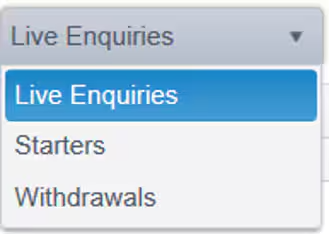
Select the required Types from each of them (you will need to select at least one from each section before the wizard will allow you to move forward).
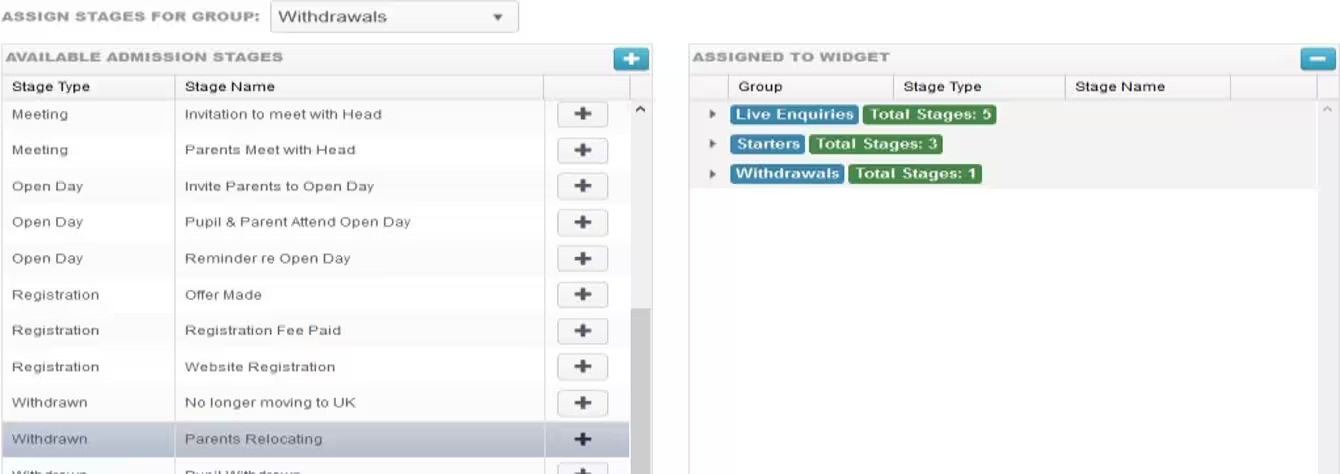
- Select Next.
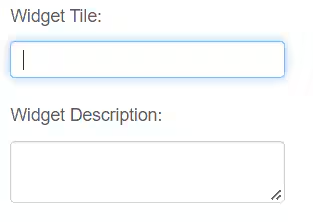
Give the widget a title and description, if required.
Choose the Widget Position on the screen. Widgets can be moved.
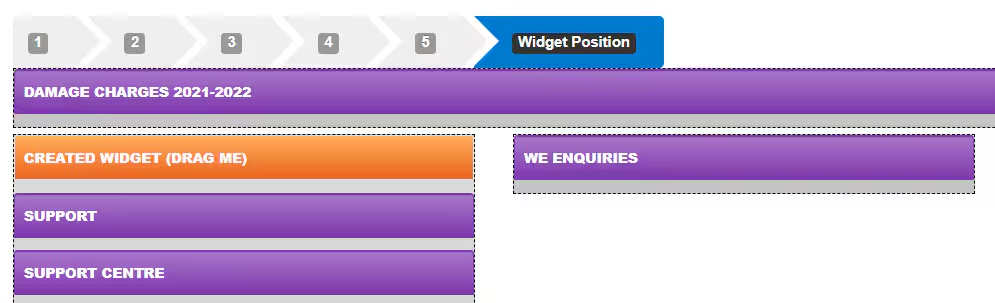
- Select Finish.
- You are returned to the homepage and the widget is displayed.
- To use the widget set the Start and End Dates for the analysis according to your requirements.
- Click on the Analysis Chart to drill down through the levels of data.
Was this article helpful?
That’s Great!
Thank you for your feedback
Sorry! We couldn't be helpful
Thank you for your feedback
Feedback sent
We appreciate your effort and will try to fix the article