TABLE OF CONTENTS
Introduction
This screen allows you to change the Analytics Name, add your own school logo, change the colour theme and, if you are a school who uses a Resource Pack, you will be able to select it here. You need Administrator access to be able to make these changes.
General Settings
Go to Admin Options > General Settings.
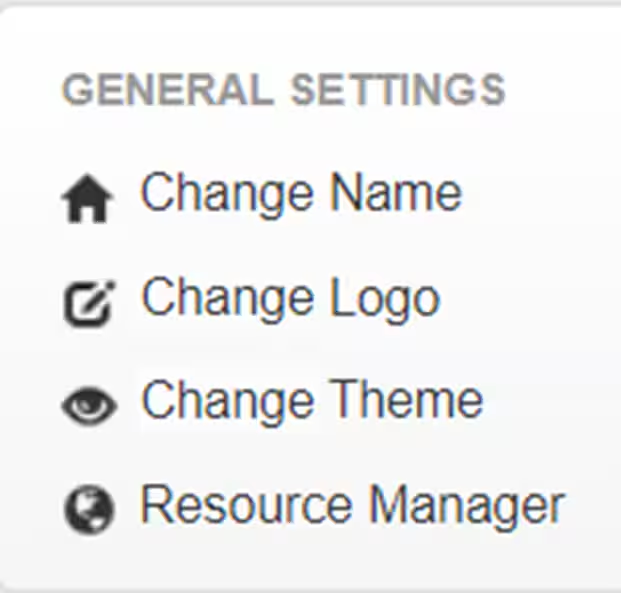
Change Name
Go to Change Name.

- Enter the new Engage Analytics Name.
- Tick Show Engage Analytics Name.
- Select Save Changes.
Change Logo
Go to Change Logo.
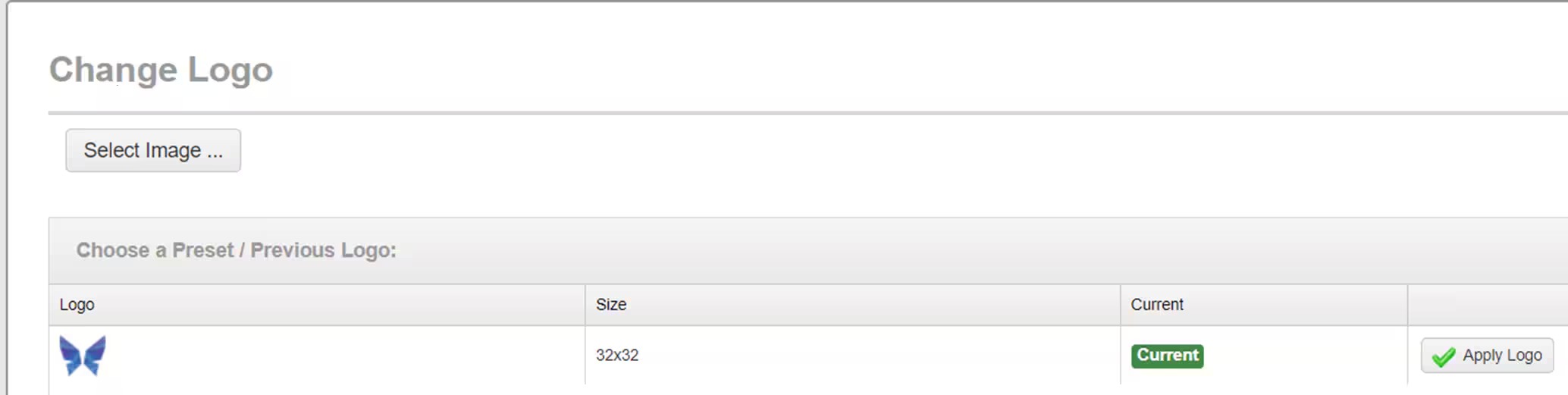
- Go to Select Image to browse for your image.
- Once uploaded select Apply Logo.
Change Theme
Go to Change Theme.
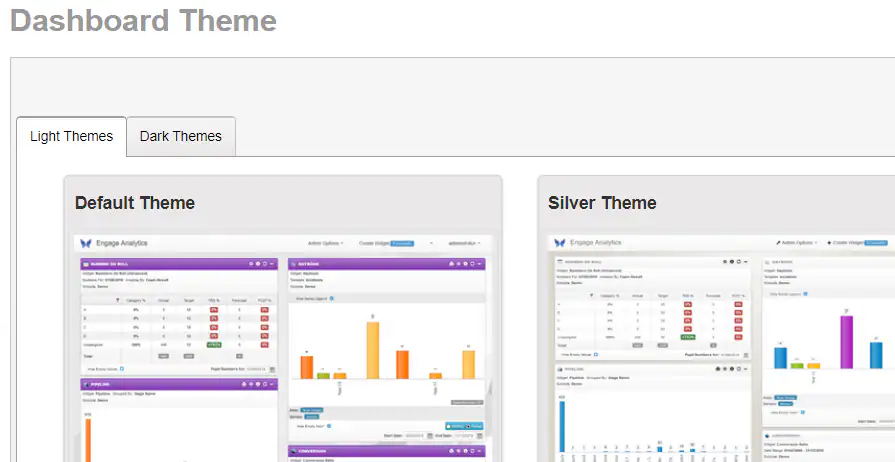
- Choose from a range of light or dark themes.
- Select Apply on the chosen theme.
Resource Manager
Go to Resource Manager.
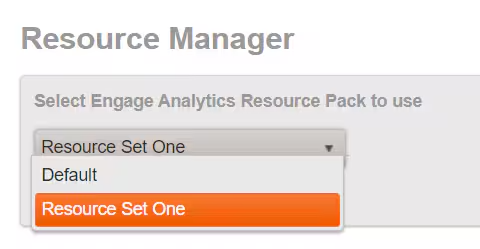
- If you use Resource Packs they will be listed here.
- Once you have chosen the pack select Save Changes.
Was this article helpful?
That’s Great!
Thank you for your feedback
Sorry! We couldn't be helpful
Thank you for your feedback
Feedback sent
We appreciate your effort and will try to fix the article