TABLE OF CONTENTS
Introduction
In this screen you can add users and assign them to groups. Having groups allows you to control which widgets each group has access to. Find out more here: Analytics - Group Manager . You can also delete and deactivate users accounts. There are two types of user accounts you can create; an Analytics only user, for example a stakeholder or Governor who doesn't use Engage but needs access to view the data in Analytics, or an Engage user whose account can be linked to Analytics.
User Manager
Add an Analytics only user
- Go to Admin Options > Security Manager.
Select User Manager.
Select Add Engage Analytics User.
Enter the required User Name and FullName.
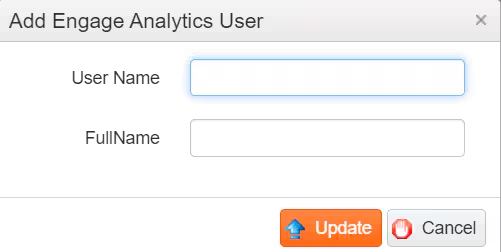
- Select Update.
- The new user will be added to the table and a random password will be automatically generated. You will need to give them this password as there is no automatic facility to send it to them. The password will remain valid until they first log in when they will be prompted to change it.
Link an Engage users account
Select Link Engage User.

- Use the filters to find the required user.
Select the + button. Analytics looks at Engage to authenticate the user’s password.

- Once authenticated the user disappears from the list.
- Repeat the process as required.
To view the users select the Back button.
- The Linked Engage Users don't have a Password displayed. They use the same password that they use to log into Engage and/or the Staff Portal.
Was this article helpful?
That’s Great!
Thank you for your feedback
Sorry! We couldn't be helpful
Thank you for your feedback
Feedback sent
We appreciate your effort and will try to fix the article