TABLE OF CONTENTS
Introduction
After the users are created or linked you need to put them into one or more groups. This is so that they can access the specific analysis charts that they need e.g. Admin Staff, Admissions, SMT, Governors. In this screen you can add groups to assign widgets to, view the users assigned to groups, remove users from groups and delete groups.
Find out how to create users here: Analytics - User Manager .
Create a group
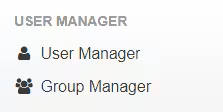
Go to Admin Options > Group Manager.
Select Add Group.
Enter the name and description, if required.
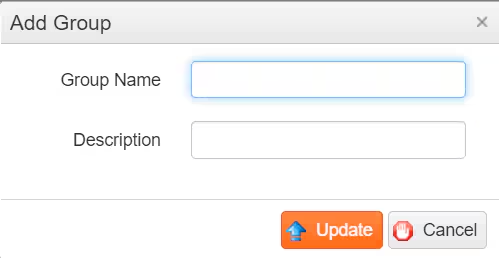
- Select Update.
- Repeat as required.
- The groups are listed in the grid.
Add users to a group in Group Manager
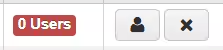
Select the Assign Groups to User icon against the relevant group.
The users are listed. Select the + icon to add them to the group.

- The users disappear from the list as they are added to the group.
- To view the group select the Back button.
Each group displays the number of users.
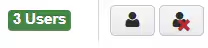
- Use the buttons to Add users to a group or Remove all users from a group.
Add/remove users in User Manager
- Go to Admin Options > Security Manager > User Manager.
Select the Assign Groups to User icon next to the relevant user.

The available groups that the user can be added to are listed. Select + to add them to the group.
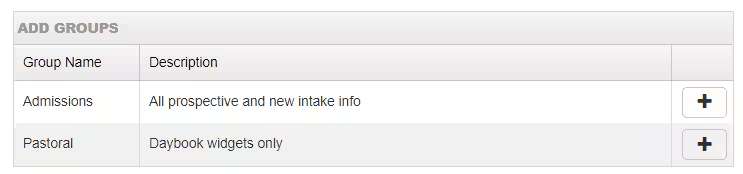
Their Current Groups are displayed. Select - to remove them from the group.

Was this article helpful?
That’s Great!
Thank you for your feedback
Sorry! We couldn't be helpful
Thank you for your feedback
Feedback sent
We appreciate your effort and will try to fix the article