TABLE OF CONTENTS
Introduction
Attendance parameters define how the school day is set up. They include the start and end times, number of periods and the length of periods and breaks. They can be different per day and per year group. The attendance parameters define the timetable so care must be taken when entering to ensure they are correct.
The parameters are set up in the Master data and copied to the Working data each academic year. Changes can be made mid-year. Find out how in Amend the working data.
Set up attendance parameters
- Go to Modules > Attendance > Define Attendance Parameters.
- On the Master Parameters screen select the school name in the list on the left-hand side. Setting the attendance parameters against the school will apply them to all year groups. You can edit individual year groups afterwards, if required.
- Select Add New in the Time Parameters for School section.
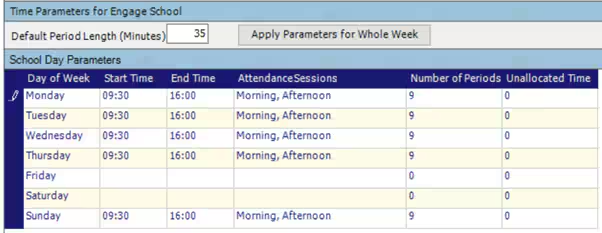
- Enter the Default Period Length. Period lengths can be changed.
- Starting with the first day of the week, enter the Start Time and End Time.
Select the Number of Periods. Make sure you include periods for form time as well as lessons, if required.
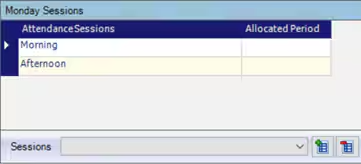
- In the Sessions section, select the green plus button to add the required sessions.
If linking Session attendance and Class attendance, select the period from the drop-down list to allocate it to the attendance session.
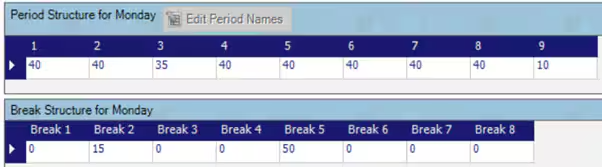
- In the Period Structure section enter the period lengths in minutes
In the Break Structure section enter the break lengths in minutes.
- Select Apply Parameters for Whole Week to copy the settings to every day, or if different, select the next day and repeat the process.
Note: Selecting Apply Parameters for Whole Week applies the parameters to Monday - Sunday. To remove the settings from any unwanted days, right-click on the day and select Clear selection.
- Select Save to complete the changes.
If year groups have different parameters select a year group from the list on the left-hand side and repeat the process above. Once saved a tick will display in the box next to the year group. This denotes that a year group has a different attendance structure to the rest of the school. The year groups without ticks have the attendance parameters that were set at school level.
Apply Master ParametersThe parameters must now be applied to the academic year.
- Select the Working Data button.
- Select the correct academic year from the drop-down list.
Select Apply Master Parameters.

- The Master Data is copied to the Working Data. A message will appear to warn that once applied the attendance parameters are read only, however they can be edited. Find out how in Amend the working data.
Was this article helpful?
That’s Great!
Thank you for your feedback
Sorry! We couldn't be helpful
Thank you for your feedback
Feedback sent
We appreciate your effort and will try to fix the article