TABLE OF CONTENTS
Introduction
Once applied the parameters can't be reapplied to the same academic year, so the attendance parameters must be edited on the Working Data screen.
There are some restrictions as to what can be edited and any changes will affect your timetables so only make changes if absolutely necessary. The following changes can be made: a change to the start and/or end time of the day, increase the number of periods each day, change the period lengths, change the break lengths or remove breaks, edit the period names.
If you need to make changes for a future academic year this is done in the Master Data screen. Find out how in Define attendance parameters.
Amend the working data
- Select the school name in the list on the left-hand side of the screen.
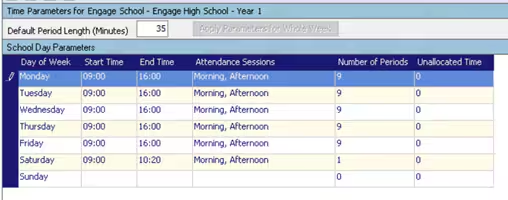
- Select the first day you want to change. Edit the Start Time and/or End Time.
- Edit the Number of Periods, if required. The number of periods can only be increased, not decreased. If you need less periods you will have to allocate zero minutes to the unwanted ones.
Once altered the Unallocated Time field will show either a + or - amount of minutes. It must be zero, once all changes have been made.
In the Period Structure section, set the new length, in minutes, for each period.

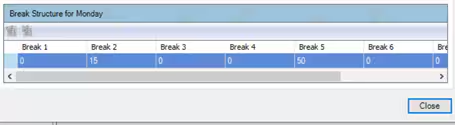
If required, go to the Break Structure section and set the new length, in minutes, for each break.
- Select Save.
- Repeat the process for each day of the week.
- All year groups will be updated, apart from the ones with ticks next to them. The tick means the parameters differ from the school level timings.
- Select the year groups that are ticked to edit them. Follow the process above.
Edit period names
Period names are edited in the Working data. If you edit the period names at school level the change will apply to all year groups, even the ones that are ticked. You can edit individual year groups to rename the periods by selecting the required year group.
- Select the school in the list on the left-hand side of the screen, or select an individual year group.
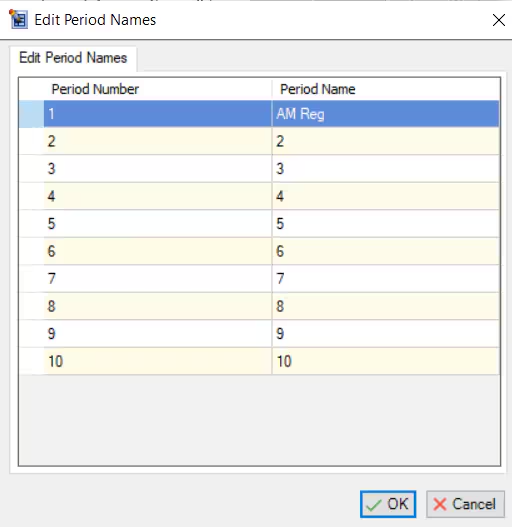
In the Period Structure section, select Edit Period Names.

Enter the new names in the Period Name column.
- Select OK.
The period names will change on the pupil timetables.
Was this article helpful?
That’s Great!
Thank you for your feedback
Sorry! We couldn't be helpful
Thank you for your feedback
Feedback sent
We appreciate your effort and will try to fix the article