TABLE OF CONTENTS
Introduction
Engage Fees has one invoice posting process used by different screens. Only one person or one process can use it at a time unless you enable the Enable Concurrent Posting.
Manage the “Lock or Dependent Lock” message when posting invoices
- If you try to open an invoicing screen or reverse a transaction that needs the invoicing process to generate a credit note, and you or a colleague already have an invoicing screen open you will see the following message:
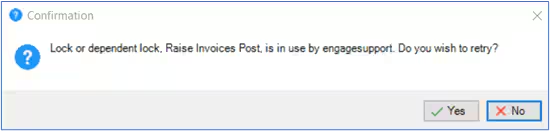
- Close screen in the message and relaunch the screen or ask the user in the message (where it is not you) to close the screen causing the lock and relaunch the screen.
- The invoicing screen or process should now work normally.
To set Enable Concurrent Posting
- Go to Fees>Setup>Fees Policies – General Information tab.
- Select the Enable Concurrent Posting option followed by Save .
- If you now try to open a screen at the same time as another user or process, you will post in a queue, if someone posts at the same time as you.
Note: Please note that if you use the Concurrent Posting option, draft invoices may show different invoice numbers when they become a final invoice. Draft invoices use the available numbers at the point you preview them, but a second process may post first and take those numbers.
For more information on working with the Fees Policies screen, please see the Fees Setup guide. For more information on working with invoices, please see the Fees Billing guide.
Was this article helpful?
That’s Great!
Thank you for your feedback
Sorry! We couldn't be helpful
Thank you for your feedback
Feedback sent
We appreciate your effort and will try to fix the article