TABLE OF CONTENTS
Introduction
When you have invoices marked as unpaid but also have unallocated cash on a Debtor Account, you can match the items manually in the Fees>Collections>Post Receipts and Refunds screen, or you can use the Match Unallocated Payments and Invoices routine to manage this for you.
Use the Match Unallocated Payments and Invoices routine
When you match invoices to payments the system uses a zero value banking as part of the posting process. You can see this on Sales Analysis screens where there is a Show Zero Receipts option.
- Go to Fees>Collections>Match Unallocated Payments and Invoices
To match all accounts with a zero balance but with outstanding payments and invoices/credit notes, select the first option:
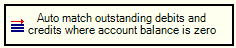
- The system will run the routine automatically
To match all accounts with outstanding payments and invoices/credit notes, select the second option:

- You will be able to match outstanding amounts manually against the accounts with unmatched receipts and invoices showing on the screen.
For more information on the manually or automatically matching transactions see the Engage Fees Collections guide Match Unallocated Payments and Invoices section.
Was this article helpful?
That’s Great!
Thank you for your feedback
Sorry! We couldn't be helpful
Thank you for your feedback
Feedback sent
We appreciate your effort and will try to fix the article