TABLE OF CONTENTS
Introduction
When you issue invoices for bill payers linked to Direct Debit Payment Profiles, there are several additional elements you need to manage.
Issue invoices for Direct Debit collection
- Go to Fees>Setup>Payment Profiles and select the Direct Debit Profile(s) you want to issue invoices for.
- Change the Collection Day settings to match the first collection day and update the Parent Default settings.
- In the Fees>Invoices>Raise Invoices screen, make your date and text selections in the Raise Invoice Parameters pane as normal.
- In the Direct Debit Schedule panel on the left of the screen, use the settings to select the Month parameters for either all DD profiles (Set Months for all DD Profiles) or against individual profiles.
- You can now run invoices as normal and Engage will calculate the DD collection amounts and dates for each bill payer and add them to the Fees>Collections>Edit DD Schedule screen.
Note: If you do not set the months in the Direct Debit Schedule panel, the following confirmation screen will appear. If you select Yes, no DD collection amounts will be calculated.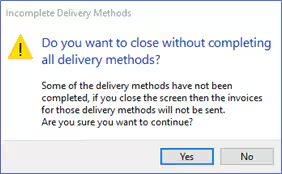
For more information on issuing invoices for Direct Debit payment profiles, see the Engage Fees Billing guide (Raise Invoices section) and the Engage Fees Direct Debits guide.
Was this article helpful?
That’s Great!
Thank you for your feedback
Sorry! We couldn't be helpful
Thank you for your feedback
Feedback sent
We appreciate your effort and will try to fix the article