TABLE OF CONTENTS
Introduction
You can use the Multiplier function in a Direct Debit payment profile to raise an initial termly invoice and use it as a basis to calculate an annual DD collection amount, but if the subsequent terms have a different value you need to follow a different method.
If your termly invoices are identical, please see Use the Direct Debit multiplier function to invoice termly but collect DDs across the year.
Use the Direct Debit Multiplier function with varying termly invoices
- Go to Fees>Setup>Payment Profiles.
- Create a new Direct Debit type payment profile.
Set the Termly to 3 (or 4) for the multiplier and the correct number of collections.
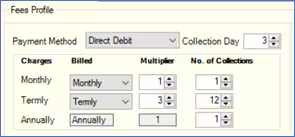
- Set the DD Remittance text to show the first collection and subsequent remaining collection amounts for all collections.
- Raise the initial invoice normally for the payment profile in Fees>Invoices>Raise invoices, setting the first collection month to populate the Fees>Collections>Edit DD Schedule screen with all the DD collection instalments for the entire year, ready for submission.
For subsequent invoices
- In Fees>Setup>Payment Profiles change the multiplier settings to match the remaining collections for the year.
- If there are two terms remaining set to 2 and divide by the remaining number of instalments.
- If it is the last term of the year, set to 1 and divide by the remaining number of instalments.
- Select the Outstanding Balance box in the Include section, to include the opening balance (whether debit or credit) in the new DD collection calculation. NOTE this will include ANY outstanding balance into the calculation and could include outstanding invoices from previous years.
- Deselect the Preserve Previous DD Schedule box to overwrite any DD collection instalments remaining from the original invoice(s).
- Raise the invoice normally, setting the first collection month to populate the Fees>Collections>Edit DD Schedule screen with all the DD collection instalments for the remainder of the year, ready for submission.
- If subsequent invoices do not change, RESELECT the Preserve Previous DD Schedule box in the Payment Profile screen before raising the invoice, but DO NOT select a payment month against the profile in the Direct Debit Schedule section of the Raise invoices Screen. If invoices change, repeat the process from point (1) above.
Note: If only a few invoices are affected, you could move those bill payers to a new payment profile, leaving the original bill payers unchanged. The new profile would be set as described in Use the Direct Debit multiplier function to invoice termly but collect DDs across the year .
You should manually delete instalments from the previous schedule in the Edit DD Schedule screen for the bill payers that you moved to the new schedule.
For more information on working with Direct Debits please see the Engage Fees Direct Debits guide.
Was this article helpful?
That’s Great!
Thank you for your feedback
Sorry! We couldn't be helpful
Thank you for your feedback
Feedback sent
We appreciate your effort and will try to fix the article