TABLE OF CONTENTS
Introduction
Engage Fees allows you to Auto-Update the pupil record when you receive a deposit by either direct payment, invoice or via the Portal Web Admissions system.
Set Pupil Deposits to Auto-Update the pupil record
- Go to Fees>Setup>Fees Policies – Registration Details
- Select the following tick box

- When you receive a deposit by either direct payment or Web Admissions payment, the Registration Details panel in the main pupil screen will update:
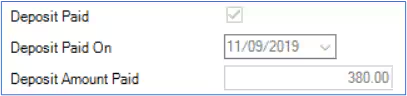
- For deposits that you raise an invoice for, the details only update when you receive payment.
If you have enabled Multiple Deposits, you will have more than one deposit account available in the Accounts structure screen. You need to select the account(s) which auto-update the pupil record as per the following screenshot:
Note: For further information on setting up multiple deposits or working with the Fees Policies screen settings, please see the Fees Setup guide. For more information on working with Deposits, please see the Fees Collections guide, Receive and Refund Deposits section.
Was this article helpful?
That’s Great!
Thank you for your feedback
Sorry! We couldn't be helpful
Thank you for your feedback
Feedback sent
We appreciate your effort and will try to fix the article