TABLE OF CONTENTS
Introduction
You can batch update the attendance for an individual pupil or a group of pupils. This can be an individual date or across a date range. It can be done for future dates or retrospectively.
Batch update attendance
- Go to Modules > Attendance > Batch Update Attendance.
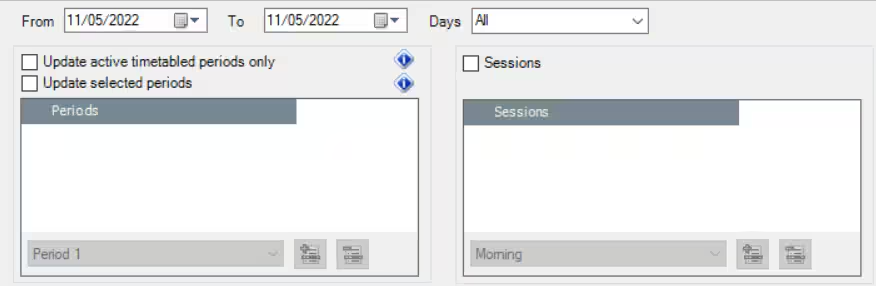
- Enter the From and To dates in the date fields.
- Alternatively, select the day/s from the drop-down list.
Depending on the attendance you are updating, choose the periods and/or sessions that require the update.
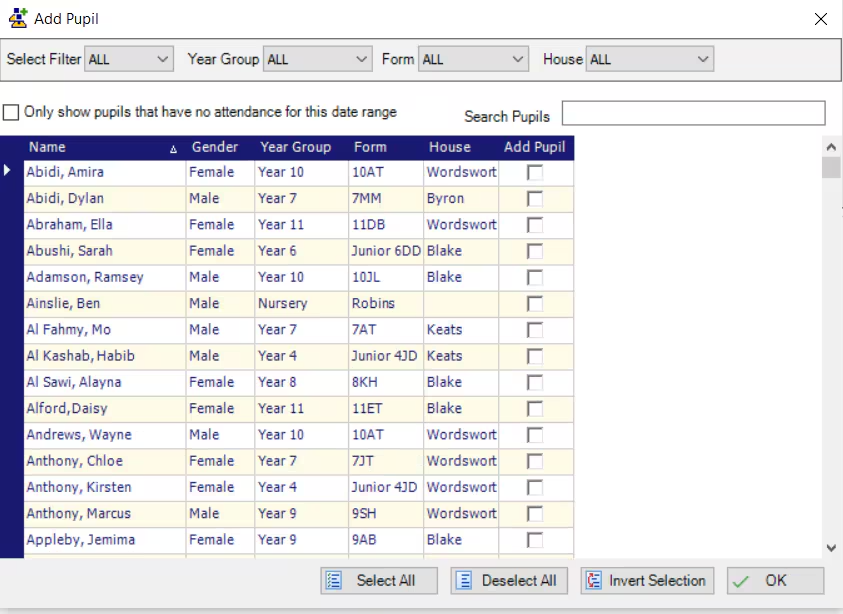
- Select Add Pupil to find the pupil/s that require the update. There are filters in the search box to help you.
Once the pupil/s are selected press Ok and the window will close.
- Chose the New Attendance Status from the drop-down list, add any notes if required.
Select Update Attendance.

The attendance is updated for the selected pupil/s and is visible on the registers of the chosen date/s.
Was this article helpful?
That’s Great!
Thank you for your feedback
Sorry! We couldn't be helpful
Thank you for your feedback
Feedback sent
We appreciate your effort and will try to fix the article