TABLE OF CONTENTS
Introduction
Engage Fees automatically puts invoices into separate batches by delivery type when you post your invoices.
Manage Different Delivery methods when you issue invoices
Set Delivery Type
- Go to Fees>Setup>Parent Defaults.
- For each billing account, ensure that the delivery method for Invoices is set to the correct method from the delivery type dropdown.
Issue Invoices by delivery method
- Go to Fees>Invoices>Raise Invoices.
- Select the invoices to raise and set the Raise Invoice Parameters. It is possible to sort and select only invoices for one delivery method from this screen (where the Invoice Delivery method column is enabled in the Invoices grid.
- Select the Raise Invoices button.
- On the Review Invoices screen, select the Preview Invoices button.
- Engage will preview on screen an initial batch of Post type invoices then a batch of Email / Portal type invoices.
- Select the Post Invoices button.
- When you accept the prompt to post invoices, Engage Fees will display a Send Invoices screen showing as many different delivery method types as you selected in point (2).
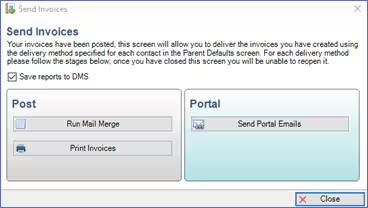
- Each delivery type window will turn green when printed/emailed.
Note: For more information on Delivery Method settings, please see the Engage Fees Setup guide. For more information on issuing invoices, please see the Engage Fees Billing guide, Invoices section.
Was this article helpful?
That’s Great!
Thank you for your feedback
Sorry! We couldn't be helpful
Thank you for your feedback
Feedback sent
We appreciate your effort and will try to fix the article