TABLE OF CONTENTS
How to remove empty lines in a Mail Merge template
This will enable the user to remove blank lines in a mail merge template.
I have the following in my mail merge document: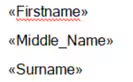
Every person may not have a middle name, and without suppressing the line the final mail merge will show this:
To remove the blank line follow these steps:
- Turn on Field Codes by pressing the “Show All Field Codes” button. You will see all the field codes shows like this:
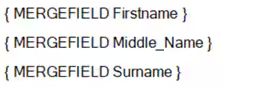
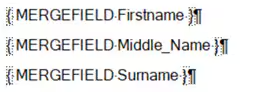
- Turn on Paragraph marking by pressing [Ctrl]+[Shift]+8. You will see the paragraph marking turn on like this:
- At the end of the field you wish to suppress if empty (Middle name in this case) enter the text ‘\b “”’. That is back slash, b, space, double quote, double quote. It will look like this:
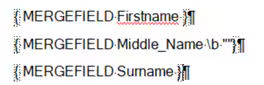
- Then drag the paragraph marker from the line above the one you wish to suppress to the gap between the double quotes. If you have done this correctly it will look like this:
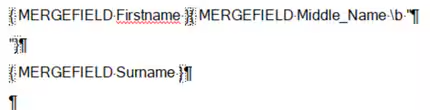
- You can now turn off paragraph markers with [Ctrl}+[Shift]+8, Press the “Show All Field Results” and “View Merged Data” buttons until you see the required details.
Was this article helpful?
That’s Great!
Thank you for your feedback
Sorry! We couldn't be helpful
Thank you for your feedback
Feedback sent
We appreciate your effort and will try to fix the article