TABLE OF CONTENTS
- Downloading the Listings Portfolio
- Adding a listing report to Engage
- Checking the reports are in Engage
Downloading the Listings Portfolio
Download the file at the bottom of this article and save somewhere locally.
Adding the Listings Portfolio to Engage
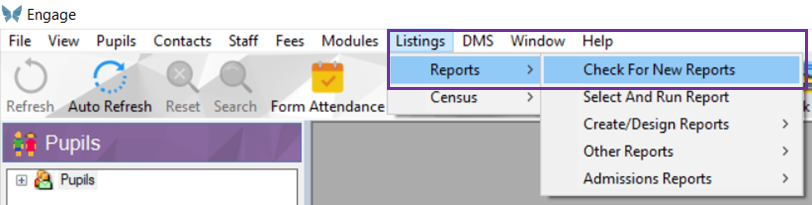
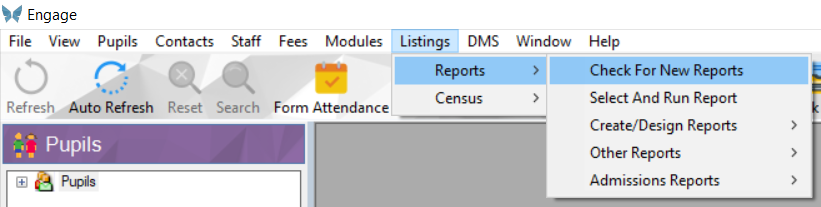
In Engage go to Listings > Reports > Check for New Reports.
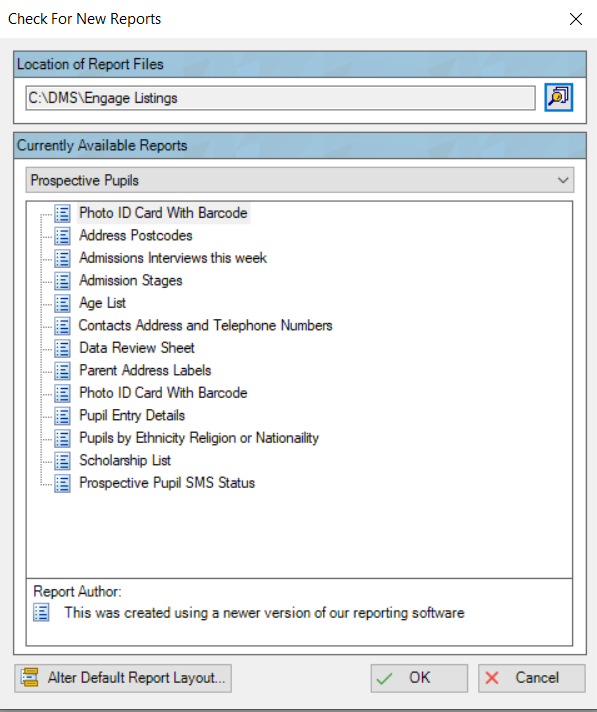
Highlight and copy the text in the Location of the Report Files field.
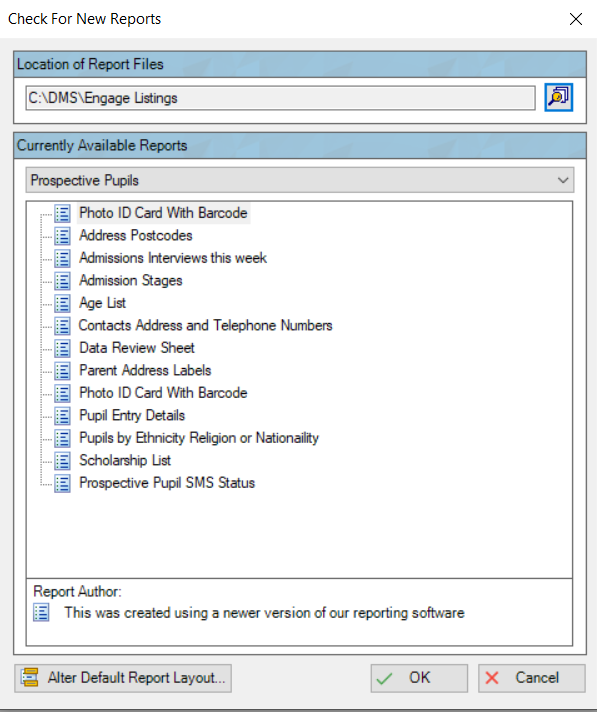
Click Cancel and then navigate to this location from your computer. On a Windows machine go to Start and paste the location into the Search bar and press Enter which will open up the folder where the reports are stored.
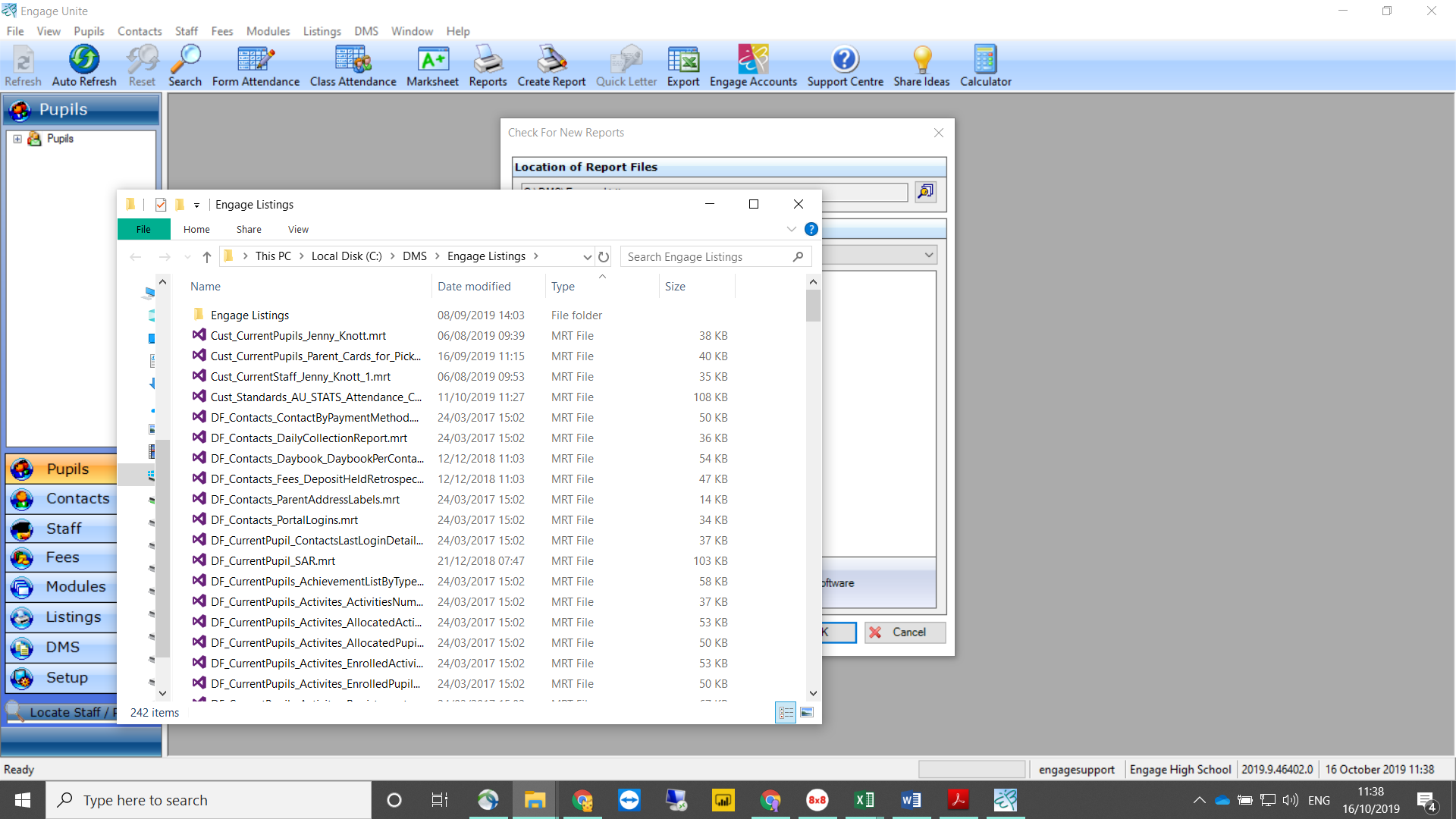
Create a new folder called Archived Reports if you want to archive the existing reports in the folder before adding the new ones.
Copy and paste the reports into the Archived Folder.
N.B Only move reports prefixed with DF_ to the Archived Folder. Any reports prefixed with Cust_ should be left in the folder as they are the reports created by users at the school.
Keep the Listings location open and separately open up the Engage Listings Portfolio folder you downloaded previously.
Copy all the listings from the Engage Listings Portfolio and paste into the Listings location folder.
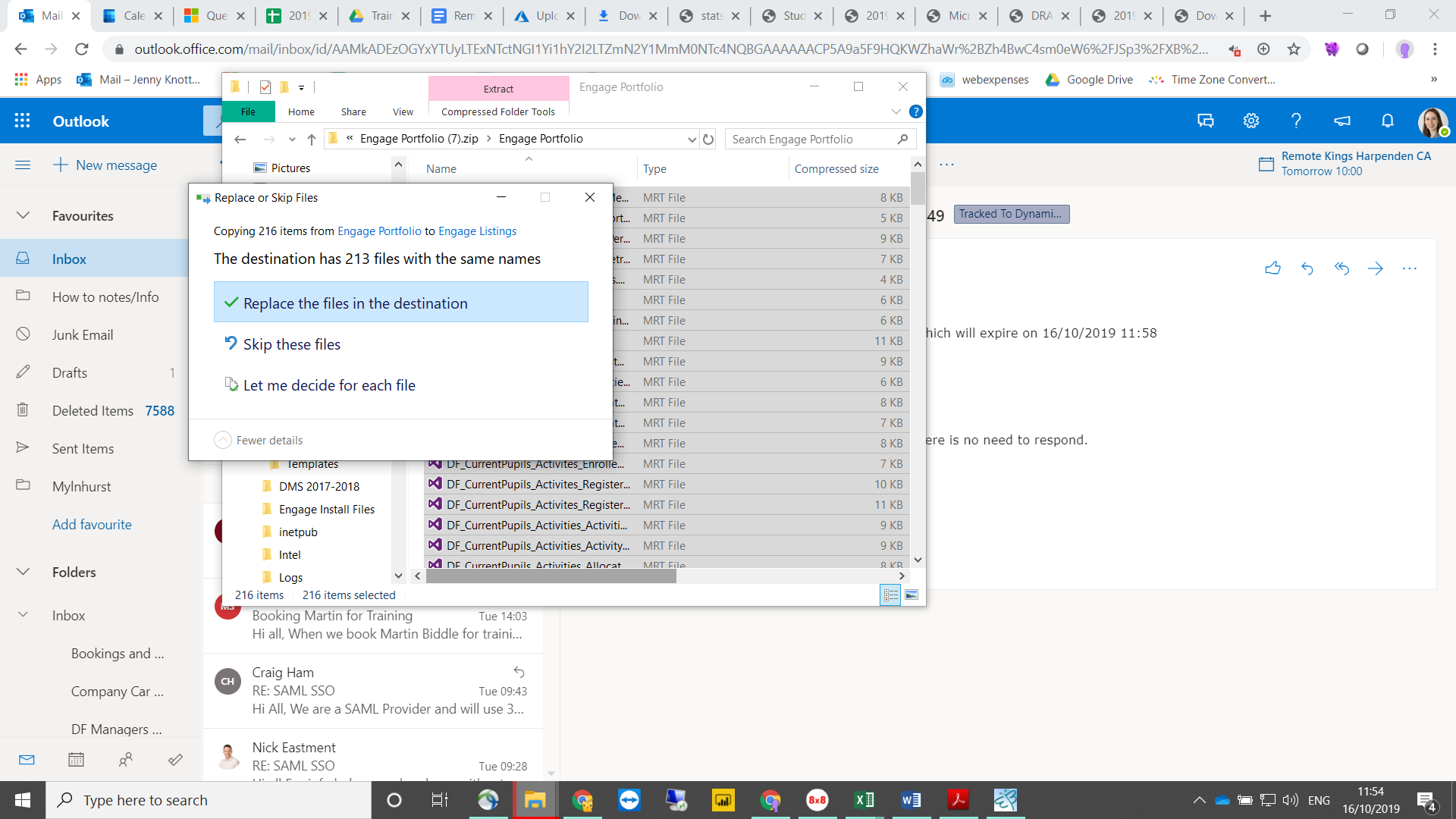
If you haven’t archived the reports, you will get a warning that some files have the same name. Choose Replace the files in the destination to overwrite the old versions of the listings.
Checking the reports are in Engage
In Engage go to Listings > Reports > Check for New Reports.
Click OK. The latest listings have now been installed.
Go to Set Up > Security > Report Permissions to check if permissions need to be set for any new listings that have been added to the folder.
Was this article helpful?
That’s Great!
Thank you for your feedback
Sorry! We couldn't be helpful
Thank you for your feedback
Feedback sent
We appreciate your effort and will try to fix the article