TABLE OF CONTENTS
Introduction
If you have accidentally entered an invoice with VAT and you are not registered or the VAT code should have been set to Z or X, you do not need to reverse the whole invoice. You can correct this by journal.
Correcting VAT on a posting via journal
Although you cannot journal directly to the VAT control in Engage Accounts you can raise a VAT adjustment journal as follows:
- Go to Nominal>Journals>Journal Entries.
- Set the date as at the original transaction.
Select the nominal code to debit (where the posting was understated in the normal way).
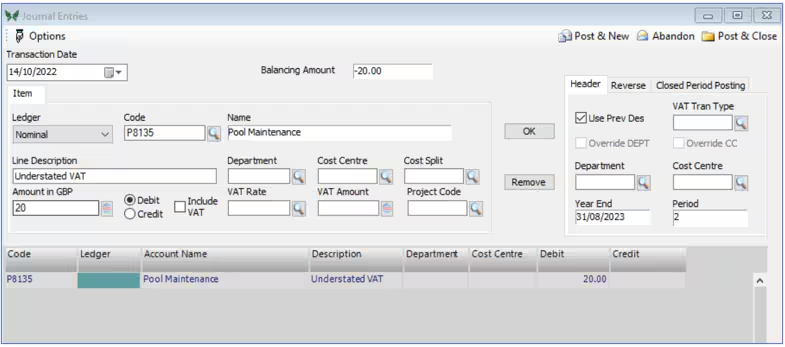
- For the VAT entry select the same nominal code but do not enter an amount.
- Select the Credit option and tick the Include VAT box and enter the rate and the rate code used on the original transaction you are trying to resolve – in this case it is S but could be different depending on your system settings.
Enter the balancing figure in the VAT amount

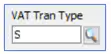
In the Header Section select S from the VAT Tran Type browse.
When you click Add the balancing amount should show zero with no value in the line in the centre pane.
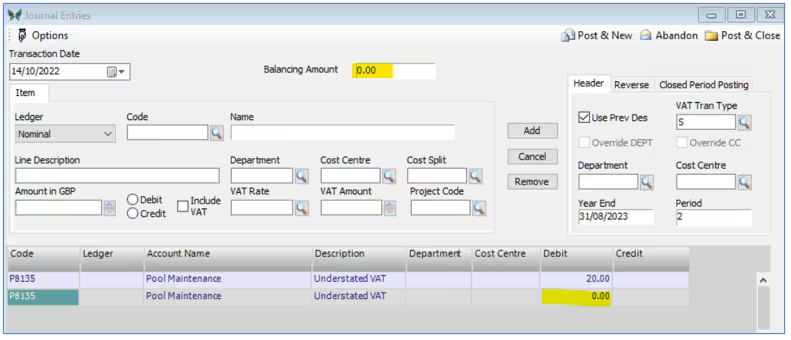
- Select Post and Close.
If you now go to Nominal>View Transaction Details you should see that the VAT control has now been credited.

- Although the VAT Control should now be correct, the transactions will not have been cleared for VAT. If you are VAT registered, these will be taken in the next VAT return.
Was this article helpful?
That’s Great!
Thank you for your feedback
Sorry! We couldn't be helpful
Thank you for your feedback
Feedback sent
We appreciate your effort and will try to fix the article