TABLE OF CONTENTS
Introduction
You can use the Ledger Adjustment tool in the View Transaction Details screen to change the nominal codes, Departments or Cost Centres on a posted transaction, or to add missing Departments or Cost Centres.
Change an incorrect nominal code on a posted transaction
- Go to the Nominal Ledger> View Transaction Details screen and select the transaction you would like to adjust.
- Select the Ledger Adjustment.
If you cannot adjust the transaction type the following message appears:
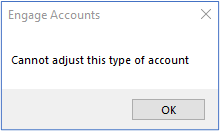
- If you can adjust the transaction the Nominal Ledger Adjustment window opens.
- Enter the revised Nominal Code, Department, and/or Cost Centre in the Adjustment Transaction panel field either manually or from the browse.
- Select Post and Close.
- You will need to select Refresh to see the corrective NLA journal transaction. There is a reversal line for the original transaction and a replacement line showing the new details.
You cannot change the transaction dates or values of the posting using this tool.
This tool is also available in the Trial Balance and View Nominals screens when you drill down to see the individual transaction lines.
For more information on the Nominal Ledger on-screen enquiry screens, please see the Engage Accounts Nominal Ledger guide.
Was this article helpful?
That’s Great!
Thank you for your feedback
Sorry! We couldn't be helpful
Thank you for your feedback
Feedback sent
We appreciate your effort and will try to fix the article