TABLE OF CONTENTS
Introduction
When you allocate a zero value charge item to a group in the Allocate Pupil Charges screen, you update the charge for the group with the Quick Edit tool or use the Edit Individual Charges tool for individual pupils before saving the allocation.
Allocate and update zero value charge items
- In the Fees>Allocation>Allocate Pupil Charges screen select the Open New Allocation Screen button on the right of the screen.
- Select the required Pupil Stage and Year Group then allocate the charge to selected pupils.
Select Yes to the Quick Edit the Charge confirmation to override the charge for the group.
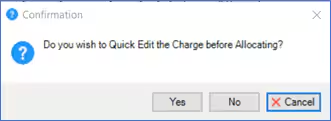
- In the Quick Edit screen, enter the revised charge as either a current run override (for one off allocations) or permanent (for recurring charges).
- Select Apply Quick Edits to allocate the overridden charge.
If Select Yes to the edit Individual charges confirmation if you need to make changes to individual pupils within the group.
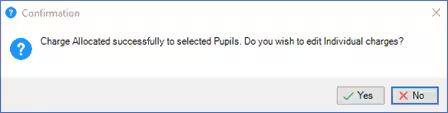
- In the Quick Edit Pupil Charges window select the changes to the individual pupil(s) and then save and close the screen.
- The overridden charges will now appear in the individual pupil allocation details.
Note: We recommend that you always select Yes to the Quick Edit the Charge confirmation so that you can review the charge details that you are allocating to pupils.
For more information on allocating charges to pupils see the Engage Fees Billing guide Allocate Pupil Charges section.
Was this article helpful?
That’s Great!
Thank you for your feedback
Sorry! We couldn't be helpful
Thank you for your feedback
Feedback sent
We appreciate your effort and will try to fix the article