TABLE OF CONTENTS
Introduction
Although duplicate charges may be perfectly valid e.g., using the same charge item for two separate school trips, it is not normal to duplicate school fees on an invoice. Engage Fees has a Duplicate Charges Report to review these charges in Compilation menu. You can also enable a Duplicate Charges Warning from the Fees Policies Screen which will warn you at the point you allocate charges.
Manage duplicates in the Duplicate Charges report
To run the Duplicate Charges report:
- Compile your charges normally from the Fees>Compilation>Compile Charges
- Go to Fees>Compilation>Duplicate Charges Report.
- Select the charge types you wish to review. Fees and Extras are default settings, but you can deselect them if you do not need them.
- Roll-ups are charges that are normally duplicated, and multiple allocations are set to show as a single line on an invoice. You can select this group if you want to review them.
- Select your Pupil stage/Year filters, if required.
- Select the View Duplicate Charges button to run the report to the screen.
- You should delete any duplicates you do not need required from the Fees>Allocation>Allocate Pupil Charges You can run the report again after you recompile to validate that the unwanted duplicate charges are no longer there.
To enable the Duplicate Charges Warning
- Go to Fees>Setup>Fees Policies – General Information
- Select Display Duplicate Charges Warning then
- When you allocate a duplicate charge, you will see the following screen with multiple options.
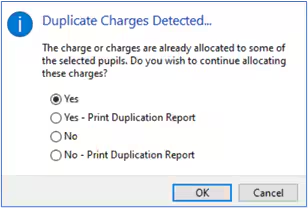
- Select the option you require then click OK.
Note: For more information on working with Roll Up charges please see the Fees Setup guide, Charge and Discounts section. For more information on allocating charges and working with the complication menu, please see the Engage Fees Billing guide.
Was this article helpful?
That’s Great!
Thank you for your feedback
Sorry! We couldn't be helpful
Thank you for your feedback
Feedback sent
We appreciate your effort and will try to fix the article